

A corrupted video does not always require a full software installation right away. If a clip fails after transfer, shows an error in the player, or refuses to preview, a browser-based first attempt can save time. Users who need to repair corrupted video online should still keep the original file safe, but online repair can quickly show whether the clip is recoverable. Repairit Online is built for that kind of convenient browser workflow.
Why Online Video Repair Is Useful
Online repair is useful because it removes setup friction from the first recovery attempt. A user does not need to pause, download software, or configure a full desktop workflow before finding out whether the file has a realistic chance of playing again. That matters when the clip is time-sensitive, the device is shared, or the user simply wants a quick answer before investing more effort.
It is especially practical for everyday situations: a project video that fails before upload, a short client preview that becomes unreadable after transfer, a social clip that will not play, or a phone recording that suddenly shows an error. The appeal is straightforward. If the file is small enough and the situation is urgent, browser repair can be the fastest route to a usable preview.
What Types of Video Damage Can Be Repaired Online
Online repair is commonly used for unplayable videos, damaged MP4 or MOV files, and corruption caused by transfer or recording interruptions. In many of these cases, the file still exists and may even show the correct size, but the player cannot interpret it properly. That is why the issue often looks more mysterious than it actually is.
It is still important to keep expectations practical. Online repair works best when enough of the video data remains intact for reconstruction. If the corruption is severe, the file is very large, or several clips from the same session are damaged, desktop repair may be the better follow-up path.
Repairit Online Video Repair for Quick Fixes
With Repairit Online video repair, the process stays simple: upload the damaged video, start the repair, preview the result, and download the repaired copy if it looks usable. That simplicity is why browser repair works well for non-technical users who need a clear path rather than a complicated media workflow.
If the file is large, private, severely corrupted, or part of a batch, desktop video repair software is usually the better next step. Online repair is convenient, but it is not always the strongest choice for every damaged video.
Step-by-Step: Repair a Corrupted Video Online
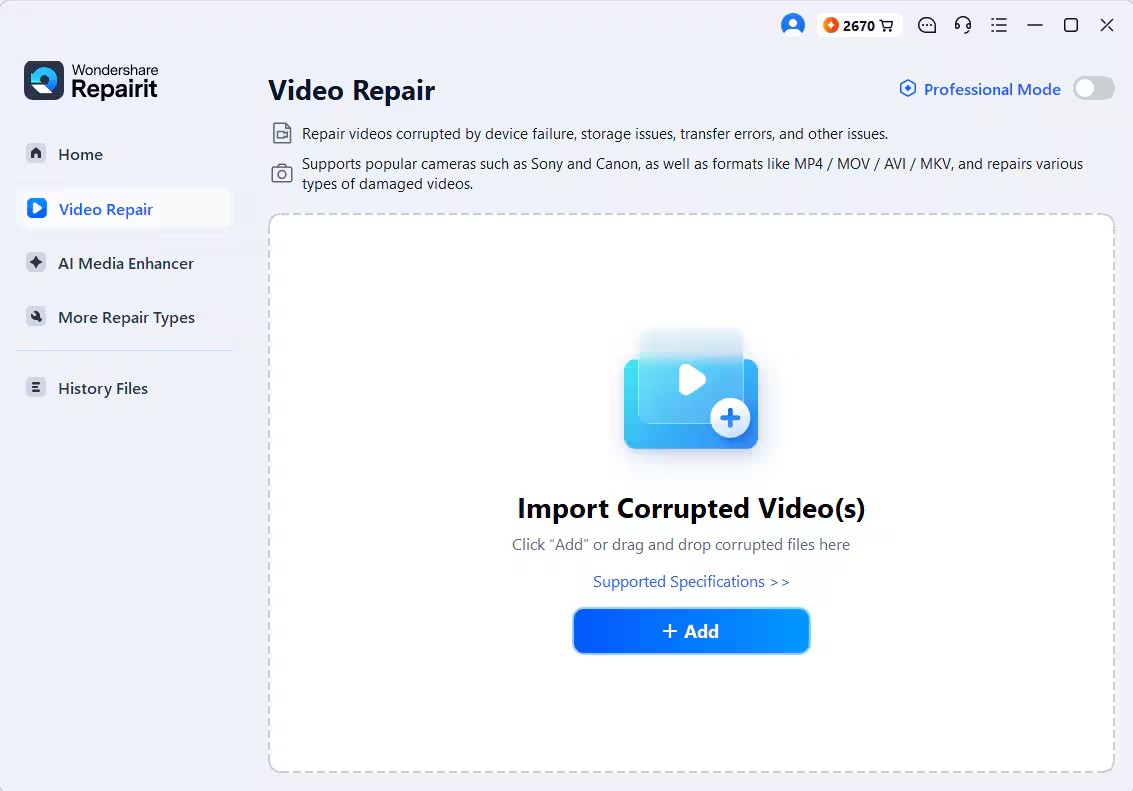
Step 1: Upload the corrupted video
Open the online repair page and upload a copied version of the corrupted video. Do not delete the original file, even if it currently will not play.
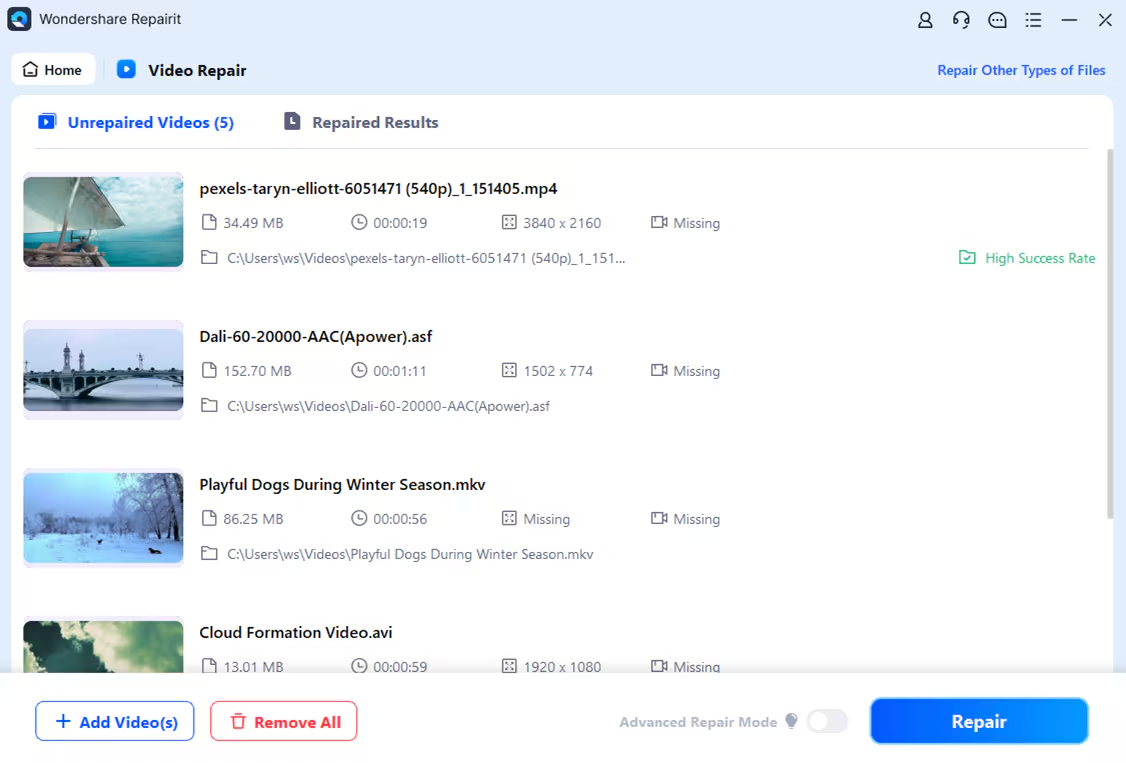
Step 2: Start the repair
Start the repair process and wait for the browser workflow to complete. Keep the page open while the file is being processed.
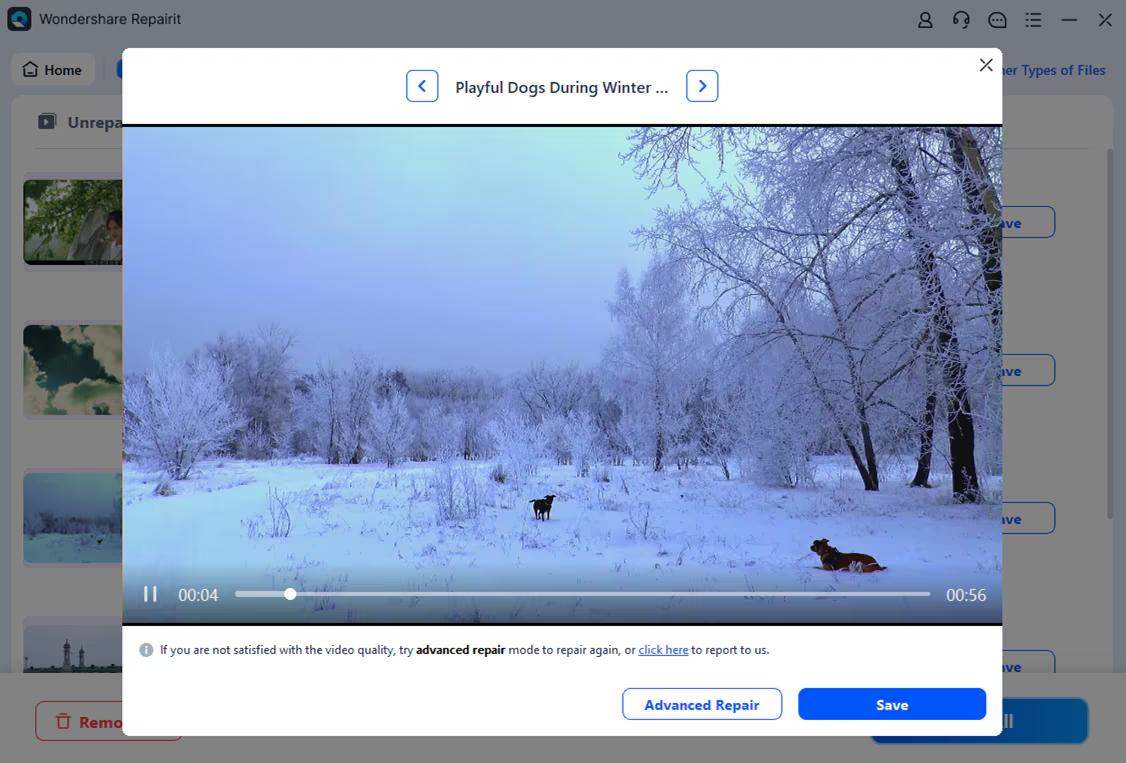
Step 3: Preview the repaired result
Preview the repaired video before downloading. Check the opening, sound, motion, and any section that failed before. If the result looks usable, download the repaired copy and keep it separate from the damaged source.
Online Video Repair vs Desktop Video Repair
| Need | Online video repair | Desktop video repair |
| No software installation | Best fit | Not ideal if installation is blocked |
| Large or private footage | Possible but less convenient | Better fit |
| Fast one-file attempt | Best fit | Useful when online repair is not enough |
Final Thoughts
Online video repair is a sensible first move when a corrupted clip needs a fast check and the user does not want to install software. The key is to keep the original file, preview the result carefully, and move to desktop repair when the file is larger, more sensitive, or more seriously damaged. That keeps the process fast where it should be fast and careful where it needs to be careful.